

Did you know that 53% of mobile users abandon a website that takes longer than three seconds to load? That means if you haven’t been paying attention to your mobile load times, you may be getting less traffic than you deserve.
When you consider that most Google searches now occur on mobile, it becomes even more important to maximize your site’s mobile page speed. One new technology to help you accomplish that is Google Accelerated Mobile Pages, also known as Google AMP.
I’ve talked before about methods to speed up website and making your site mobile friendly. Guess what? Google AMP can help you accomplish both of those things at the same time.
Google AMP speeds up the mobile version of your site by offering lightweight versions of your pages hosted on Google’s servers. As a result, visitors get their content incredibly fast, which means they’re less likely to abandon your site and more likely to continue reading your posts.

In this post, I’ll tell you a bit more about Google AMP and then show you exactly how to set up Google AMP for WordPress using one free plugin.
- Also read: [Official] AMP Testing Tool by Google: Test Your Website Today
- SEO Benefits Of Accelerated Mobile Pages (AMP) And How To Get Started
Before that let’s dive deeper to understand more about Google AMP project.
What is Google AMP?
Google AMP is a new initiative from Google aimed at making mobile websites load faster. If you’re familiar with Facebook Instant Articles, Google AMP is a similar idea.
Instead of loading your full mobile site, Google loads a stripped down, minimalist version of your site that looks something like this:

Google also gives sites with AMP a special mark in the mobile search results and a chance to show up in a “featured” carousel at the top of the page:

Though Google says AMP does not currently have a direct effect on your site’s search engine rankings, it does provide a chance to get more clicks thanks to the eye-catching AMP icon and featured carousel.
Here are some of the best videos to understand AMP in detail:
How to Set Up Google AMP for WordPress
It’s easy to add Google AMP to WordPress thanks to an official plugin from Automattic. But, the official plugin doesn’t have any configuration options, so you’ll likely want to add an extension plugin to be able to further style how Google AMP looks and functions.
First, I’ll show you how to install and test the official plugin. Then, I’ll show you how to set up the extension (which requires you to already have installed the official plugin).
If you like, you can watch this complete video tutorial to implement AMP Pages on your WordPress website.
Or you can read the complete process below.
How to configure Official Google AMP Plugin
To get started, install the AMP plugin like you would any other WordPress plugin.
You don’t need to configure anything. As soon as you activate the plugin, it will automatically add AMP versions of all your posts (Note: the plugin does not add AMP versions of your pages).
To verify that AMP is working properly, you can add “/amp” to the end of the URL of one of your WordPress posts. Example:

You should see a new minimalist interface which looks something like this:

Don’t worry about any duplicate content issues – the plugin automatically adds a rel=”canonical” tag so that Google knows the content isn’t duplicated.
As I mentioned, the official plugin doesn’t actually give you any further options to configure your AMP pages, so let’s take it one step further by installing another plugin which does.
Configuring Your Google AMP Pages
To add configuration options for Google AMP, you need to install the AMP for WP plugin.
Remember: The AMP for WP plugin will only work if you already have the official AMP plugin installed. So, make sure you’ve followed the previous step before you try to set up AMP for WP.
Once you activate the AMP for WP plugin, you’ll see a new “AMP” tab in your WordPress dashboard. This is where you can configure advanced settings for AMP:
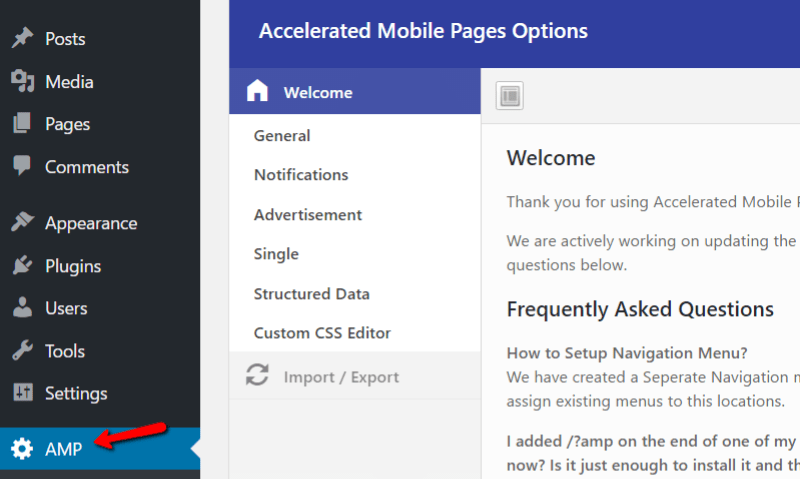
Get started by clicking on the “General” tab:

In this tab, you can add your site logo, Google Analytics tracking, and change the color scheme for your AMP pages. You can also add custom text to the footer of your pages.
In the “Notifications” tab, you can add a custom notice that pops up when users visit your AMP pages. The most common use for this would be something like a “cookie consent” notice, but you can make the text anything you want.
The “Advertisements” tab allows you to add multiple AdSense ad blocks. Currently, AdSense is the only network supported by the plugin, though hopefully that changes in the future.

“Single” is where you can configure the actual format for your AMP-enabled posts. You can choose to show/hide featured images, comments, social icons, and lots more. You definitely should configure this tab:

The “Structured Data” tab allows you to set default widths/heights for your pages, as well as a default featured image.
And finally, the “Custom CSS Editor” allows you to include any other custom CSS snippets you’d like to add. These style changes will only affect your AMP pages.
Once you’ve gone through all the settings, make sure to click the “Save Changes” button.
Configuring Your AMP Pages Menu
The plugin also adds a separate menu location specifically for your AMP pages.
To set up this menu, start by going to “Appearance” → “Menus”. Create a new menu for your AMP pages:

On the next screen, make sure to choose the “AMP Menu” location:

Then, you can drag and drop links to this menu like you would any other menu on your WordPress site. Though, this menu will only show up on the AMP versions of your posts.
Styling Your AMP Pages Visually
You can also use the visual WordPress Customizer to style your AMP pages by going to “Appearance” → “AMP”:

You don’t have a lot of options, but it’s nice to be able to preview different styles in real time.
Should you enable Google AMP?
The Answer is yes. You should enable it right away. Google AMP is a great way to speed up the mobile version of your site. As I mentioned, this can directly improve your traffic because the majority of people will simply quit loading a page that is taking too long.
AMP is also incredibly simple to set up with WordPress. It only takes about 15 seconds to activate the basic AMP plugin. Configuring your AMP pages further is simple as well thanks to the AMP for WP plugin.
Google AMP is still fairly new & it’s already become the standard for major publishers. And given that Google is behind the technology, it probably won’t go away anytime soon.
Don’t forget to share this post. And if you’ve already implemented Google AMP on one of your sites, it would be awesome if you left a comment about your experience.
Note: This article was originally published on WPSutra here. Based on popularity & usage, this post has been republished here with proper credits. WPSutra is a dedicated blog to learn about WordPress.




Hi Harsh. After following this article under google mobile friendly test shows my mobile site is “mobile friendly”. My site”a mobile experience score increased to 78 however my desktop score decreased to 48 on Google page insights. Any thoughts? Thank you
Thanks a ton harsh… I followed your guide and I made my blog appnol.com AMP compatible. It is super fast. I also read that the AMP change will impact google ads revenue. Even though it is a considerable factor, user experience is second to none.
I dont agree with AMP right now, because it is only working with adsense, what about affiliate links? Where will we insert the codes. AMP is still in beta, so we bettdr not use it right now.
This is an absolutely excellent post on the importance of using AMP. I am going to add it in my blog now.
Hey Harsh,
Don’t agree with you this time !
I dont recommend AMP implementation for Sites monetized by ADS networks like Adsense …
They will see their revenue drop down !
In my case, I falled from 25 to 3 $ /day …
And it is due to page load speed which become very quick comparing to ads slots which are loaded after 3 seconds. and then skipped and unseen by visitors …
Harsh,
What do you recommand for those who are in my case ?
We are just struggling ..
Thank’s
@Nicolas
You are right with your perspective on this & for now if you are experiencing such significant loss, you should not use AMP. However, users who are not monetizing using AdSense or such display network, they should definitely use AMP. However, do remember that over the time AMP pages will overtake the usual web pages for the simple fact; it gives better user experience. My advice for you is; try to work on your monetization strategy & gradually move to other monetization such as Affiliate marketing.
First Happy New Year ! Harsh Agrawal Sir,
This AMP Plugin is good for all website or blogs.When it works on website or blogs then blog or website open fastly on mobile.
But most of the bloggers are using google Adsense on their blogs for earning money… when they will use this plugin on their blogs. Their blogs open fastly on mobile but google ads do not work there.
Could you suggest me or other bloggers? how to earn from google AdSense for using this amp plugin?
I am waiting for your reply…
Hi Harsh, after enabling AMP, do we have to configure the Google analytics for amp in any sort, or amp pages already are published with the our analytics code?
Thanks Harsh ji for updating about Google AMP. Really very useful information and i will certainly apply AMP for my blog.
Hey Harsh,
Great post, AMP Is surely taking internet to great heights and ensuring that the sites are easily accessible to a wider audience.
I have also seen great ranking improvements when the AMP got enabled on one of our site.
Glad that we have opted for WP as the preferred CMS !
I wonder if this AMP is of any use to forum sites?
Can we redirect all our mobile devices queries to only amp pages? And does its beneficial over responsive design? Considering page seep as a major ranking factor.
Thank you so much Harsh for sharing a such beautiful tip. I will try to implement it on my some websites. Happy New Year as well. 🙂
First, Happy New Year Harsh. I notice that you are using amp two days ago. I wait this turoail for last two days. Thanks harsh for sharing Complete AMP Guide
Hai,
In your previous article you mentioned “Glue for Yoast SEO & AMP” plugin for Yoast users. Should I still install Glue for Yoast SEO & AMP plugin along with 2 plugins in mentioned in this article?
Thank You
Thanks Harsh,
I will give an update after trying it.
You have a nice day.
@Amar
You welcome.
Let me know how the strategies work out for you.
Thank you Harsh for wonderful innovation..it’s very helpful for me & my websites. I will install this plugin for my websites.
Hey, harsh,
First of all HAPPY NEW YEAR to you and Thanks for the update. I actually haven’t use AMP for my blog. However I am using cloudflare for my blog. So, I want to that is it ok to use AMP while I am using Cloudflare? Does it create any conflict? Please advice.
Thanks for the clarification Harsh. I have successfully installed the AMP on my blog. Everything works great and my blog now loads faster in mobile devices.
Thank you Mr.Harsh for your valuable information. Even though the AMP will not effect our searching rankings directly, but it will drive more traffic to your website.I think soon this will be also considered as a ranking factor by Google.
Hi Harsh.
Happy New Year.
Never even heard of Google AMP
Prior to reading this post.
Must get it for my blog
As I definitely want mobile users
To have easy access to my blog.
Thanks for sharing.
Best wishes and regards.
Ved
wow, this is a wonderful innovation. I will install this plugin right away.
Thanks Harsh.
Hello Harsh,
Thanks for telling me about Google AMP. I have question for you. Will installing this plugin in my WordPress not in a anyway affect my already existing theme, seeing that my theme also have this Ad Management section you mentioned also existed in Google AMP?
I look forward to your reply.
Emenike