
Page speed is important for a better user experience and also for SEO. In WordPress, there are many cache plugins available.
But out of all of them, WP Super Cache and W3 Total Cache (W3TC) are my favorite. The major difference between these two plugin is: Super cache is easy to configure where as W3TC has too many options & you need to configure extensively.

I have heard a lot of good things about the W3 Total Cache plugin.
It’s a lot like WP Super Cache, but with more options. In particular, if you are planning on using a CDN, the W3 Total Cache plugin is really great.
To speed up loading time, I’m using MaxCDN on my blog network. To supplement this, I also tested out the W3 Total Cache plugin.
This test was performed on my WordPress hosting blog.
How To Install W3 Total Cache
Search for “W3 Total Cache” from the “Add new plugin” section in the WordPress dashboard. Or you can download the plugin from here and manually upload it to your server.
- If you are new to WordPress, this guide will help you install a plugin: How To Install A WordPress Plugin.
Note: Make sure to uninstall the WP Super Cache plugin or any other WordPress cache plugin.
How To Configure W3 Total Cache
The setup options in W3 Total Cache are much more advanced than those in WP Super Cache. But don’t get confused! I’ll show you how I’ve set it up on my blog, and you can review and copy the settings for your own site.
General
Once you have installed and activated W3 Total Cache, go to Performance > General and enable everything you want to cache. Later on, you can make changes to individual settings and fine tune your W3TC configuration.
When you are done, click on “Save all settings”.
After making changes, click on “Preview” to check if everything is OK. If everything looks good, click on “Deploy” to make these settings live.
Refer to the image:


Page Cache

By default, all of the essential settings are checked. Review them, and move on to the next setting.
Minify
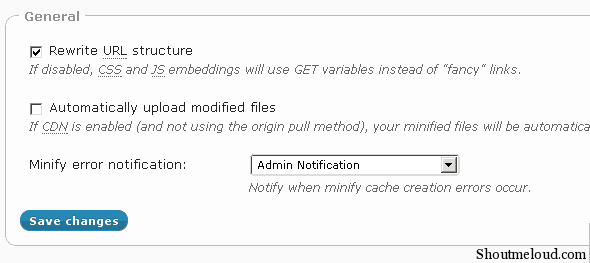
But if you are not using a CDN, you might want to disable “Automatically upload modified files”.
Database Cache

Browser Cache

Extensions

One cool thing about W3 Total Cache is the support for extensions.
It offers extensions for a few popular WordPress plugins & themes such as Yoast SEO, Genesis, CloudFlare & Feedburner.
How To Integrate Google Page Speed with W3 Total Cache

Earlier I wrote about how to configure W3 Total Cache and also a little about Google Page Speed.
The latest version of W3 Total Cache allows you to integrate with Google Page Speed to see the performance of your site. The faster your site is, the better it is for search engine ranking.
In this guide, I will be sharing how to enable Google Page Speed inside of W3 Total Cache.
I’m assuming you have installed the W3 Total Cache plugin. If you want to know why you should install it right now, W3 Total Cache is a powerful caching plugin for WordPress which helps in loading your site faster.
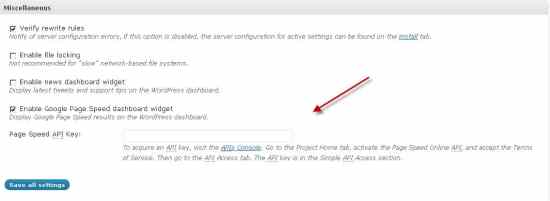
Once you have installed W3 Total Cache, go to the plugin settings and click on the tab “Miscellaneous”.
Click on “Enable Google Page Speed dashboard widget”.
You need to enter a Page Speed API to enable this feature.
How to get a Google Page Speed API?
Go to the Google API homepage and login with your Google ID. Look for the option “Page Speed Online API” and switch it ON.

Now click on the “API Access” tab on the left sidebar and you will see your API key.
(Important: Don’t share your API key with anyone else.)

Copy the Google API key to the W3 Total Cache settings and click on “Save”. It might take some time to see the result on your dashboard.
This is a very useful feature and will help you to see how your site is performing along with actions you can take to speed up your website.
How To Uninstall W3 Total Cache WordPress Plugin
At times, due to hosting compatibility issues or non-compatibility with other plugins, W3 Total Cache can act weird. In these instances, it’s important to uninstall W3 total cache to make sure it’s not creating issues.
It’s also important to uninstall it correctly, or you will have even more issues in the future.
sometimes, W3 Total Cache interacts strangely with another current plugin, and you might get weird issues like 404 errors or your entire blog might be redirected to Install.php.
A possible solution to this problem is to uninstall W3 Total Cache.

Here’s a quick tutorial on how you can remove the W3 Total Cache plugin manually.
- First, delete all cache and deactivate the W3 Total Cache plugin.
- Delete the W3 Total Cache plugin from the Wp-content/plugins folder.
- Remove this line from Wp-config file – (define(‘WP_CACHE’, true) )
- Delete advanced-cache.php, db.php, wp-total-cache-config.php, and delete the entire w3tc folder from the Wp-content folder.
- Check the .htaccess file; if you see any code added by W3 Total Cache, remove it.
Check out:
Many options in this plugin are plug and play. If you follow this tutorial, you should have no problems setting it up.
Using a cache plugin and a CDN will help dramatically decrease the load time of your website. And a faster site means a better ranking and a better user experience. If you aren’t caching and using a CDN, you need to start doing that today.
Do let us know: Which caching plugin are you using? Share your experience in the comments below!
Don’t forget to share this post!








Thank you for a very detailed post that helped me set up my w3 total cache.
Thanks, Author for this setup article. I was on a dive setting up W3 Total Cache plugin but self-tweaks proned into errors. Thanks for sharing this researchful article which helped my site run faster under proper caching settings.
Thank you.😍
hello harsh,
i have configured w3 total cache but its not working, showing an error
“”This page isn’t working
thudnews.com is currently unable to handle this request.
HTTP ERROR 500″”
while using purge cache button its showing this error
pls help me out..
Thanks Harsh for details about this caching plugin. I started using this plugin for my website. Thanks.
Dear Harsh,
Nice blog, I have a query regarding object cache. If you enable them I have seen it slows down the admin panel of WordPress drastically. Don’t you think that option needs to be configured on a situation basis?
@Raj
Yah! Even I have seen some issue with Object caching but it helps speed up front end by great extent. You can disable it when you are working in the dashboard, else you can keep it enabled.
Hi Harsh,
Just wanted to ask you, is it okay to use Autoptimize along with W3 Total Cache?
I’ve read somewhere that both these plugins should not be used together.
You can use them together. I use them on my blog and it has helped boost my pagespeed to 99/100. Just ensure that you turn of minify in W3 total cache. Only use Autoptimize to minify resources.
Hello Harsh! I am following your blog since long now and trust have learnt a lot. Thanks.
I need a little bit of help – Mine is a startup site, but have started with Cloud VPS Server with Data Centre located in Mumbai, India. 2.80*4 CPU and 8GB Ram is the part of Server Configuration. For better Site Security and Performance what should i use – Cloudflare (If cloudflare then free or paid plan) or Sucuri, W3Total Cache, WP Super Cache, Varnish Cache or Some other plugin/software.
@Amit
If you need top notch security then use Sucuri
If average security (Still great) is ok, then use Cloudflare + any cache plugin.
Varnish is server level cache & if you can configure it (Take care of cache flushing)..
thanks for sharing the great blog….i have applied this setting to my site…and i found slighty improvement…any method to make site faster…as my site is design in wordpress…
thanks
Excellent Harsh. I really follow your tips. I had bought a book from you is about Affiliate Marketing. The book is good writing but I didn’t understand much more in that. Can you simplify it for better understanding?
Thanks for posting these type of better content and helping people.
Thanks for sharing this post really helpful.
Harsh,when you start blogging how much time it take to make reach 1000 visits /day.
Hi, nice article here, pls can someone help out, my host has w3 total cache fork installed which works fine, but it has been adding some additional querys to my site links..
Such as ?27e5db
For example, example.com/….html?27e5db
I have contacted host, have no idea, however each time I deactivate w3 cache, it akk goes back to normal
But as it stands, I need a caching plugin to avoid resources being used.
Any helo from u all, cc HARSH AGRAWAL and others help..
Hi Sam, you can enable the option in Browser Cache
“Remove query strings from static resources
Resources with a “?” in the URL are not cached by some proxy caching servers. ”
This should solve your problem.
Harsh,
I am trying to install the w3 total cache for my blog. When I go to the plugin in WordPress it says:
Compatible with your version of WordPress but the theme is not available and this theme is not available on our system due to performance, security and compatibility concerns.
Can you please let me know what I can do to install this. I get the same message for even the superfast cache theme. At the current moment, I am using gator cache. What do you think about this?
@Safwan
What theme are you using?
Can you share a screenshot of the warning?
The theme I am using is volt magazine. I can’t attach the screen shot here. I will email you it.
@Safwan
Since it’s a premium theme from Themeforest, you can contact their support for this issue.
thanks Harsh
Hi Harsh,
On first instance everything worked for me.
Later when I installed Yoast SEO everything crashed! I then removed Yoast SEO reinstalled W3 Total Cache but all in vain.
I don’t know which plugin should be the next to try for caching.
Thanks.
@Ankita
You can try WP Super cache
https://www.shoutmeloud.com/wp-super-cache-wordpress-optimization-plugin.html
nice info sir.
which is best CDN Max CDN or Cloudflare CDN??
Hey Harsh ! indeed a great guide i analysed my site with gtmetrix but its speed was too low but after reading this having hope to enhance its speed thank You
Nice sharing. W3 total cache is an excellent WordPress plugin. Most of the WordPress users use this cache plugin. I have some confusion about this plugin but after reading your article, I am clear about this plugin. Now I know how to settings this plugin in my WordPress site. Thank you very much for sharing such a details article.
Every time I can see All wordpress blogs with W3 Total cache plugin. But I dont know how to play with it.But this article helps me for configure this plugin for my blog. Thanks for shaaring