
Step by step: Creating and uploading torrent files

by Harsh Agrawal on January 1, 2009

in Torrent

How to create torrent and upload them using utorrent

The explosion of peer to peer file sharing has reached so many.  Still, there are those who aren’t sure how to get started.  For those who want to “get in” but do not know how, we created this simple step-by-step guide to make joining the “torrent revolution” a breeze.

Torrents are the best way to share files. It works on peer to peer file sharing protocol. A torrent is actually a small file with extension .torrent which contains information about the tracker and where the file is located. To download a torrent file you need a torrent client like utorrent, bittorrent.

There are two types of torrent users:

  1. Seeders: People who upload file or people who download and seed file for upload. In this tutorial I will show you how you can create a torrent file for both public and private torrent sites.
  2. Leechers: People who download file and then remove the torrent ( no further upload ). That’s where Private torrent trackers comes in action. Every user have to maintain 1:1 ratio (download:upload) else his account will be banned and I personally promote private torrent trackers for the same reason.

Regardless of what your style is, remember that it’s a world of reciprocation.  This is not the place to discuss leechers vs. seeders.  On to the tutorial.

How to create a torrent file

Before you start creating a torrent, you will need two things:

  1. Torrent builder : In our case we are using utorrent)
  2. Torrent tracker: You can get the tracker address from the website for which you are creating torrent.

In this case I will be creating for one of the private torrent website, bwtorrents, though the process is almost the same for all the websites. The only difference is the tracker address.

Step 1

Download utorrent from utorrent download page.

Step 2

Install utorrent and open it.

Step 3

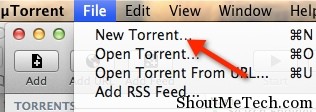
Either click on ctrl+N or navigate to file>create new torrent under utorrent.

new torrent file

Step 4

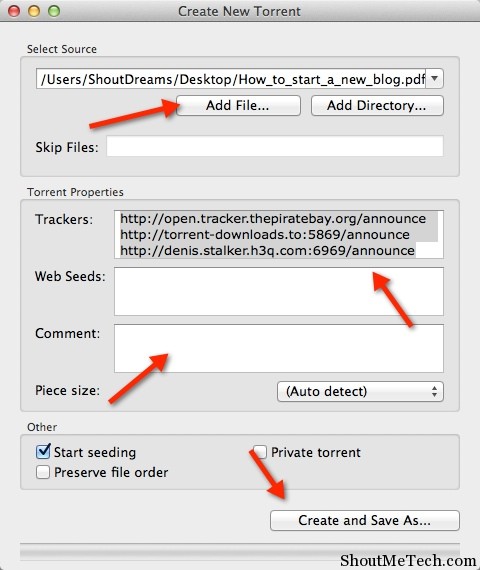
Now you have to decide what are you going to upload a file or a directory? In our case we will be sharing a directory which contains 2 files.  Browse the directory and now open your torrent website where you want to upload the torrent.

Step 5

We need to find the tracker address :

Open the home page of the torrent website and at the bottom of the page you will see the current tracker address. If you have trouble finding it you can take help of help forums else drop a comment there and we will help you.

Check the screen-shot for bwtorrents tracker :

Torrent tracker screenshot

and here are the some popular trackers that you can use for public torrent websites:

http://open.tracker.thepiratebay.org/announce
http://www.torrent-downloads.to:2710/announce
http://denis.stalker.h3q.com:6969/announce
udp://denis.stalker.h3q.com:6969/announce
http://www.sumotracker.com/announce

By now you have added your tracker address. If you still have confusion read this : Private torrent website use there own torrent tracker whereas public torrent website may allow you to use their own tracker or generic one which I mentioned above.

Bwtorrents tracker added

Step 6

Now there are two options: “Start seeding” and “private torrent

Start Seeding option:

In some private torrent website you first need to upload the torrent and then download the torrent from there and then seed (upload) the file. So its better if you make it a habit for every website.

Private torrent option:

Private torrent option if checked disables DHT that means in case if the tracker is down it use the other means to exchange peers. This should be checked only if you are creating torrent for public torrent and unchecked if you are creating for private torrent because private torrent needs to keep a track of your download and upload ratio. So better leave it unchecked.

Click on create and save as. This will save the torrent file and also give a meaningful name to the torrent you are creating.

Step 7

Open your favorite torrent website and go to the right category and click on upload torrent and give all the details you can provide there. If you are uploading movies or some video do provide them with few Screen-shots.

Step 8

Once done download the torrent file and open it using your client. I would recommend utorrent for its ease of use and stability.

Step 9

Open then downloaded torrent file and in the location navigate it to the folder you used to create the torrent file:

saving torrent file

You will see a screen shot like this after that it shows that you have finished downloading the file (100%) and now you are seeding.

torrent tutorial final screenshot

Within a minute it will show connected and congratulation now you have become a seeder.

If you have any doubt or any confusion feel free to ask via comment or best catch would be twitter http://twitter.com/shoutmeloud

Right now we have one post on Top Indian torrent sites and two other posts on torrents are under construction.

Top private torrent tracker and How to boost your Torrent speed is currently being created.  Stay tuned for those updates and enjoy your Torrent experience!

Subscribe to feeds if you don’t want to miss any of them.

If you like the post then acknowledge it by leaving a comment and stumbling it.

If you enjoyed this post, make sure you subscribe to my RSS feed!

Related posts:

  1. Shoutmeloud blast from the past : Torrent and torrent clients
  2. Online private torrent tracker registration open checker
  3. Download lots of free Ebook from Torrent using ebookshare
  4. Top indian torrent websites
  5. Vertor torrents Tracker website : A verified Torrents website
  6. Demonoid.com registration are open : No demonoid invitation code required
  7. Firefox addon for torrent

Previous post: Happy new year to shoutmeloud readers

Next post: Dreamhost: unlimited bandwidth and unlimited storage with dreamhost promo code.

{ 5 trackbacks }

Added by a PAL to FAQ PAL
January 3, 2009 at 20:18
Bitlet a web based torrent client
January 8, 2009 at 17:41
Torrent search engine
January 9, 2009 at 16:57
The complete list of top torrent clients for windows, linux and mac
January 15, 2009 at 12:04
Top 10 Hollywood movies on hacking
January 27, 2009 at 05:06

{ 25 comments… read them below or add one }

1 JustinSMV January 3, 2009 at 14:58

nice tutorial you have here, an excellent source on a torrent file.

JustinSMV’s last blog post..Bit.ly Trumps Budurl To Become Best Twitter Link Track, Stat & Shrink Tool

Reply

2 P@r@noid January 3, 2009 at 19:49

Twitter: @denharsh

@ Justin
Thanks!

Reply

3 MadCow January 4, 2009 at 00:05

Thanks, very usefull!

Reply

4 Tim January 4, 2009 at 08:07

Thanks for explaining! Much appreciated.

Tim’s last blog post..Enceladus - Sixth Largest Moon of Saturn

Reply

5 Abhishek January 5, 2009 at 17:08

Twitter: @deshabhishek007

Nice way to guide your visitors regarding Torrents !!

Abhishek’s last blog post..Clean Up time

Reply

6 apples January 9, 2009 at 19:36

side note i have some stealthed 360 games and a few apps id like to upload but I pretty much only trust Demonoid for uploading. So if someone could hook me up with an invite code it would be greatly greatly appreciated.
Amontee15@aol.com

Reply

7 P@r@noid January 9, 2009 at 20:28

Twitter: @denharsh

@ Apples Go to this link http://www.Demonoid.com/register.php?with_invite=1

and register..Invitatoion code I have mailed you

Reply

8 Swordfish January 17, 2009 at 13:24

GUYS.. THANKS A MILLION FOR THE TREMENDOUS HELP.. IT TOOK ME APPROX 15min TO UNDERSTAND FROM ABSOLUTELY ZERO KNOWLEDGE ABOUT TORRENT TO AT LEAST “FILE DOWNLOADABLE”. THANNNKKSSS A MILLIIOONN

Reply

9 Anurag January 22, 2009 at 04:57

it is a nice tutorial but can u tell me that suppose my sister frm US creates a torrent using utorrent ,meant to be used by me only , if i ask her to paste an TRACKER http://open.tracker.thepiratebay.org/announce

unchecked private torrent ….and create the torrent…..
Now if i ask here to send me the file she created as a torrent via email and i open it with utorrent do u think this will work….

Does the tracker site and the site where torrent is to be uploaded be same ?
Does the ip address being used as traker in utorrent work ?
The thing is piratebay consists of adult content though is old enough but i can take her to such a site plzzzz help me out

Reply

10 Anurag January 22, 2009 at 04:59

I dont wnt to upload the torrent or plzz suggst a good tracker and a site with no explict content

Reply

11 BAS January 29, 2009 at 13:13

NIce great guide

Thnx so much for the info

Reply

12 Nihar March 13, 2009 at 07:30

Twitter: @niharsworld

Great tutorial for those who don’t know on how to create the torrents.

I am active user in bwt? Are you also?

Nihar’s last blog post..India vs New Zealand 5th ODI - Live Cricket Streaming Links - Auckland

Reply

13 Rahul Bindal March 30, 2009 at 11:30

Thz man….its really nice info…

Reply

14 Abhishek April 2, 2009 at 07:24

Twitter: @deshabhishek007

good guide for beginners !!

Reply

15 spellathon April 2, 2009 at 13:36

Hey harsh, great research on how to make torrent file. You are always coming up with cool ideas. Keep it up.

Reply

16 Harsh Agrawal April 2, 2009 at 15:18

Twitter: @denharsh

Thanks bro.. :)

Reply

17 Gautam April 2, 2009 at 14:42

I prefer you to eith place the big images in the center so that text comes down of the images or either make their size small and hyperlink them. I don’t recommend any text in the right side of any big image. Also, for the post title, Make it Title Caps.

Reply

18 Harsh Agrawal April 2, 2009 at 15:17

Twitter: @denharsh

I understand Gautam
This glitch is happening because of the change of theme …
That’s why if you notice in new post I prefer placing images at center.
I’m working on a custom image right now…
Things will turn out to be good..once I will be done with the customization ..

Reply

19 Gautam April 2, 2009 at 14:44

And also make the text justified and for Step 1 etc, use Headings

Reply

20 Chetan April 2, 2009 at 18:53

Twitter: @cchetanonline

Good Guide for newbie !!

Reply

21 pro April 2, 2009 at 20:44

Twitter: @mnvamsi

I have been searching for this type of guide all over!!

Reply

22 Elipse June 12, 2009 at 06:18

Hey, thanks! THis is a great tutorial. To be honest, I’m not here to learn to create torrents, my problem is that I have created a couple of torrents, seeded them for a few days, and them removed them from utorrent. I saw that there were leechers and no seeders for these, so I decided to seed again. But I can’t seem to figure out how to do this without downloading the torrent again, and with 0 seeders, that might be a little difficult. Any help is greatly appreciated.

Reply

23 Elipse June 12, 2009 at 06:26

Oh, and I forgot to mention that I deleted the torrent, but still have the files. I know how to restart a torrent that I still have. I would like to seed a torrent I deleted, without having to reupload it to the web. Thanks again.

Reply

24 Harsh Agrawal June 12, 2009 at 09:29

Twitter: @denharsh

Elipse, the best way what you can do here is, Download the Torrent file you have uploaded on Internet. Browse your current file location and start seeding. I hope it will help you.

Reply

25 Elipse June 14, 2009 at 10:06

I copied the files into my downloads folder, downloaded the torrent from the web, and utorrent just checked the files. Now, I’m seeding again without having to download the files again. I’m not sure if this is what you meant, but your reply lead to this result, so Thanks A Bunch!!

Reply

Leave a Comment

CommentLuv Enabled